


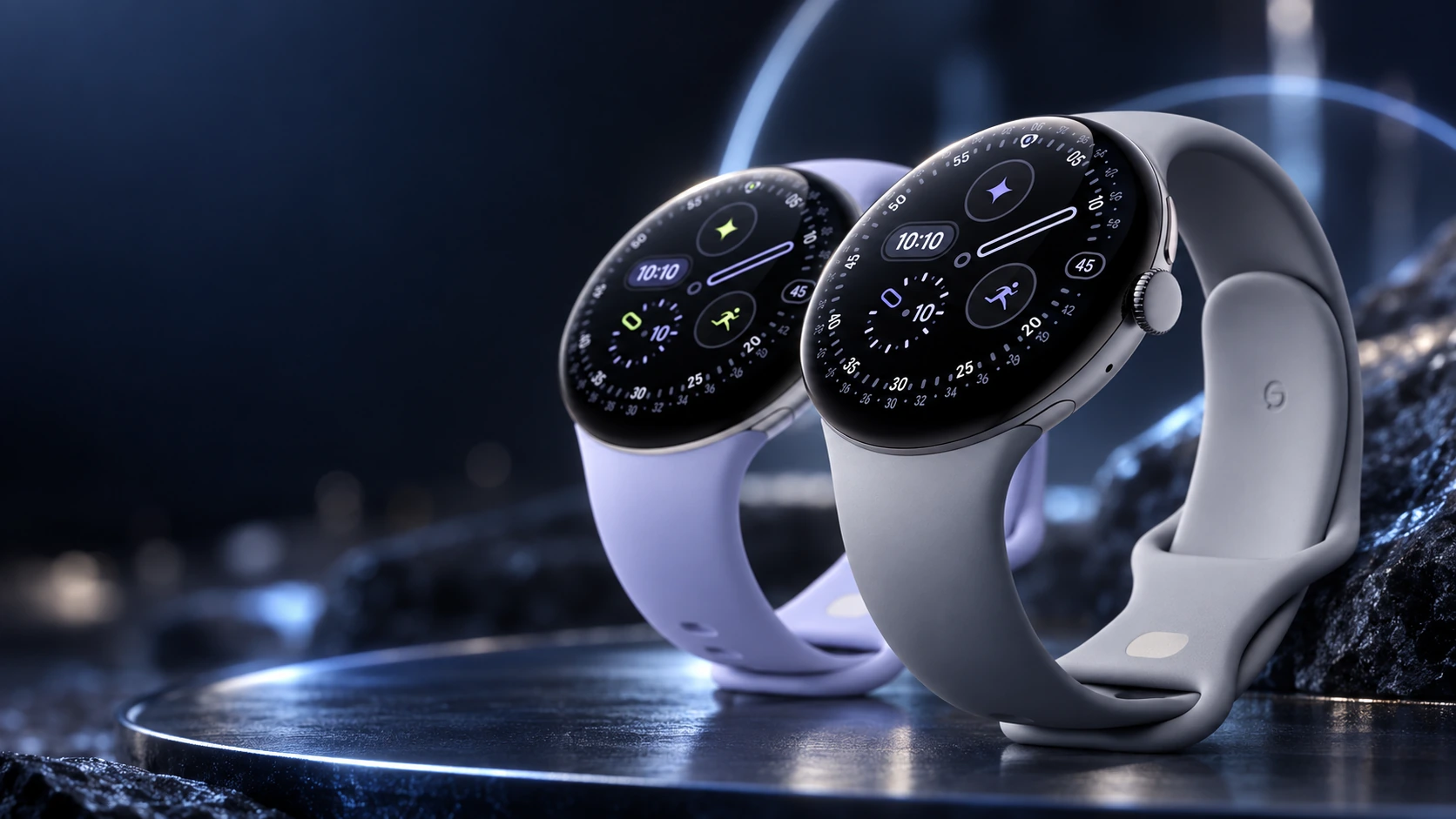
Setting up sleep tracking on Pixel Watch starts with the watch, the correct health app and enough charge to last through the night. Treat the first few nights as a configuration check. You are looking for a consistent record, rather than a perfect score from a single evening.
Connect the current health app
Google’s current help documentation uses Google Health for Pixel Watch activity and sleep tracking. Some older material still uses Fitbit branding. Follow the app and account flow offered for your device rather than an old screenshot with different labels.
Complete the watch setup, connect the health app on the phone and make sure you can view the device in that account. Confirm that the watch and app are updated, and review any permissions requested for the functions you intend to use. Do not assume a missing paid insight means that the basic nightly record has failed.
Prepare for the first night
Google specifies a minimum 20% charge for sleep tracking. Leave additional headroom for your own overnight routine rather than treating the minimum as a promise that every night will complete. A short charge during an existing morning or evening break can be easier to maintain than an unpredictable late-night top-up.
Wear the watch with a comfortable, secure fit and a clean, dry band. Choose a bedtime routine that reduces unnecessary interactions. If you enable Bedtime mode, check the settings and alarms you depend on before relying on it for the first time.
| What you notice | First check | Why it helps |
|---|---|---|
| No nightly record | Watch charge and account connection | Rules out an incomplete night or the wrong account |
| Record visible only on the watch | Sync and phone app connection | Separates capture from transfer to the app |
| An insight is unavailable | Model, region and subscription requirements | Not every feature has the same eligibility |
| Unusual single-night result | Fit and several nights of context | Avoids treating one entry as a trend |
Check the result the next morning
Open the health app, allow the watch to sync and look for the sleep entry. Record whether the start and end roughly match your recollection. If something is missing, check the connection and app state before changing every setting or resetting the watch.
Use several nights to establish whether the setup is consistent. A practical log can contain bedtime, wake time, whether the watch was charged and whether a record appeared. Keep that log simple enough to continue without turning it into another nightly task.
Keep features and measurements separate
Google lists extra bedtime functions for Pixel Watch 5, including Smart Wake. That does not mean an older Pixel Watch automatically has those controls. Check the model and software requirements for a feature before looking for its menu.
Likewise, a nightly duration, sleep-stage estimate and a paid coaching feature are different outputs. Configure the basic record first, then decide whether the additional interpretation is useful to you. There is no need to start a subscription simply to investigate a connection problem.
If a night is still missing
Check charge, fit, the selected account, app updates and synchronization in that order. If the problem repeats, note the watch model and software version and use Google’s support guidance. Avoid a factory reset as the first experiment because it introduces new setup work without identifying the cause.
Sleep tracking is a wellness record, not a medical diagnosis. Use it to understand patterns alongside your own observations. For concerns about persistent symptoms or sleep quality, a watch score is not a substitute for advice from a healthcare professional.
Related QGH guides
- Google Pixel Watch 4 Review: Is Google’s $349 Smartwatch Worth It?
- Smartwatch Health Tracking Explained: ECG, SpO2, Sleep and Heart Rate
Sources and methodology
This guide combines manufacturer documentation with QGH buying and setup analysis. Sources were checked on October 6, 2026. Model, software, regional and carrier conditions can change; follow the current linked instructions for your device.