


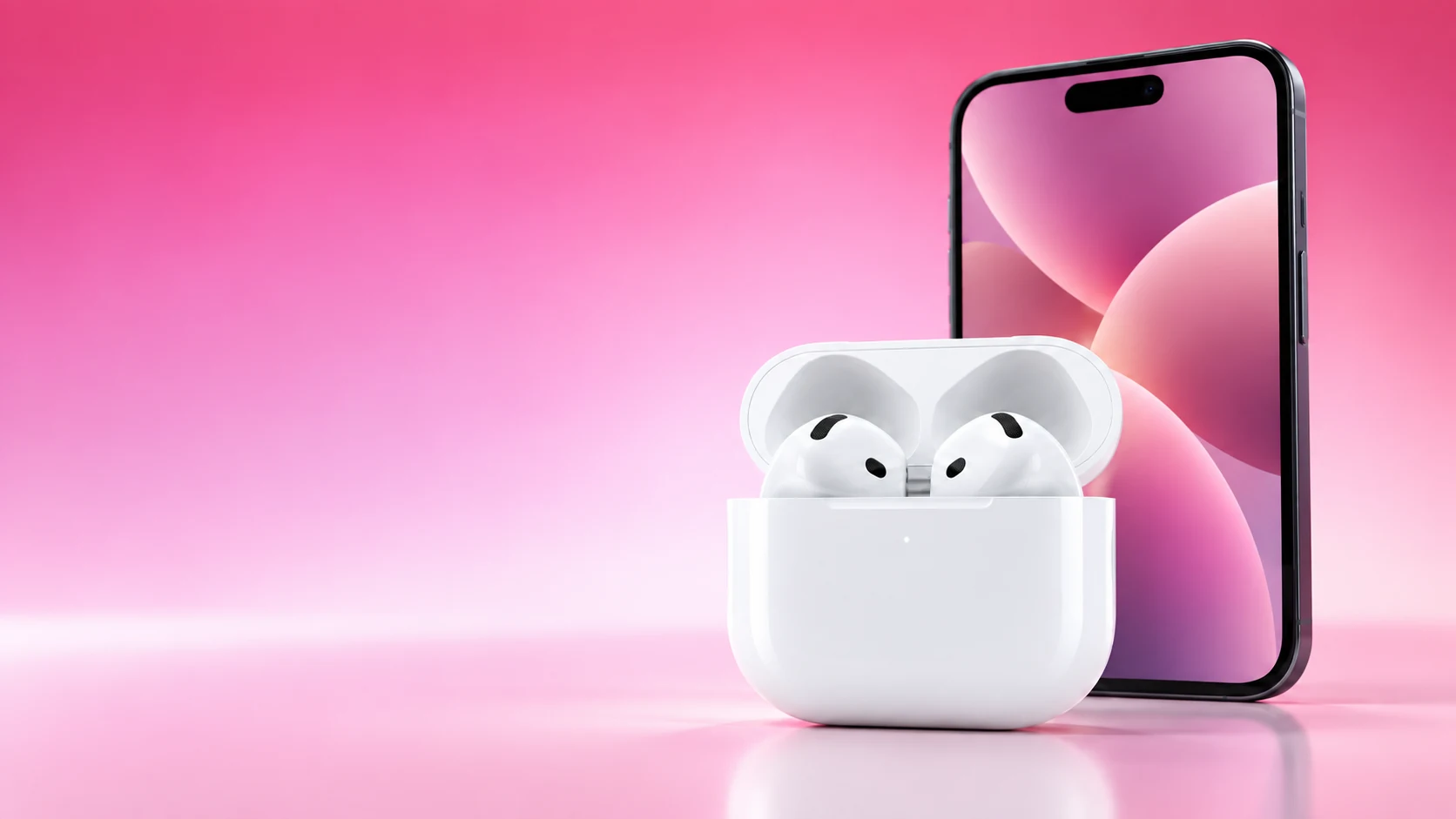
When one AirPod is quieter, first establish whether it plays sound at all, whether it is charging, and whether the imbalance follows the same earbud across ordinary listening. Check these basics before increasing the volume or assuming that a replacement is necessary.
Use a familiar recording at a comfortable level and note the affected side. Change one variable at a time so that the result of each check remains clear.
Separate silence from lower volume
| Symptom | First useful check | Next direction |
|---|---|---|
| One earbud produces no sound | Confirm each earbud is charging and test the affected one | Follow Apple’s no-sound procedure |
| Both play, but one is quieter | Inspect the speaker area and audio balance | Clean only as instructed and retest |
| Difference appears in one app | Try another familiar source and inspect app settings | Investigate the source or app before resetting |
| Difference changes with positioning | Check fit, including compatible tips on AirPods Pro | Compare a secure, comfortable fit |
| Fault remains after basic checks | Record the model and steps completed | Use the manufacturer’s support route |
The table organizes diagnosis; it does not identify a fault from a symptom alone. A charging problem and a blocked mesh can both feel like “one side stopped working” during a quick test.
Verify both earbuds are receiving power
Apple’s no-sound guidance asks you to check the case and the charge status of each earbud. Place both in the charged case, then inspect the individual status using a supported connected device.
If the affected AirPod is not charging, focus on that problem first. Follow the case’s cleaning and support instructions, and avoid poking its contacts with a sharp object. A playback reset cannot prove that an earbud with no power has recovered.
Inspect and clean appropriately
Apple’s quiet-earbud guidance points to inspecting microphone and speaker meshes and using the model’s cleaning instructions when debris is present. AirPods and AirPods Pro have different diagrams and procedures, so identify the pair before applying a cleaning method.
Do not push debris into the mesh or use improvised solvents. Follow the current manufacturer’s diagram for the permitted areas, then allow any required drying time before putting the pair back into the case. The aim is to address visible obstruction without creating a second problem.
Check balance and the audio source
On iPhone, Apple’s guide directs you to the balance control under Accessibility, Audio & Visual and asks that it be centered for this check. Record any intentional accessibility settings before changing them so you can restore your preferred configuration later.
Try a second familiar track or app. A single recording with unequal left and right content is not a useful basis for declaring a hardware imbalance. Likewise, a setting in one application may not represent the phone’s general output.
Retest and choose the next step
- Confirm power and the affected side.
- Check visible debris using the exact model’s cleaning guide.
- Review balance and any relevant app settings.
- Compare familiar content after each change.
- Save the results for support if the issue persists.
Apple provides model-specific reset and replacement setup guidance when appropriate. Use those instructions after the relevant basic checks, rather than repeatedly resetting without a clear result. If the imbalance remains, a service assessment is more informative than compensating indefinitely with increased volume.
Related QGH guides
- Apple AirPods 5 Review: Are Apple’s $129 Earbuds Worth It?
- AirPods 5: 7 Things to Know Before You Buy in 2026
Sources and methodology
This guide combines manufacturer documentation with QGH buying and setup analysis. Sources were checked on October 6, 2026. Model, software, regional and carrier conditions can change; follow the current linked instructions for your device.