


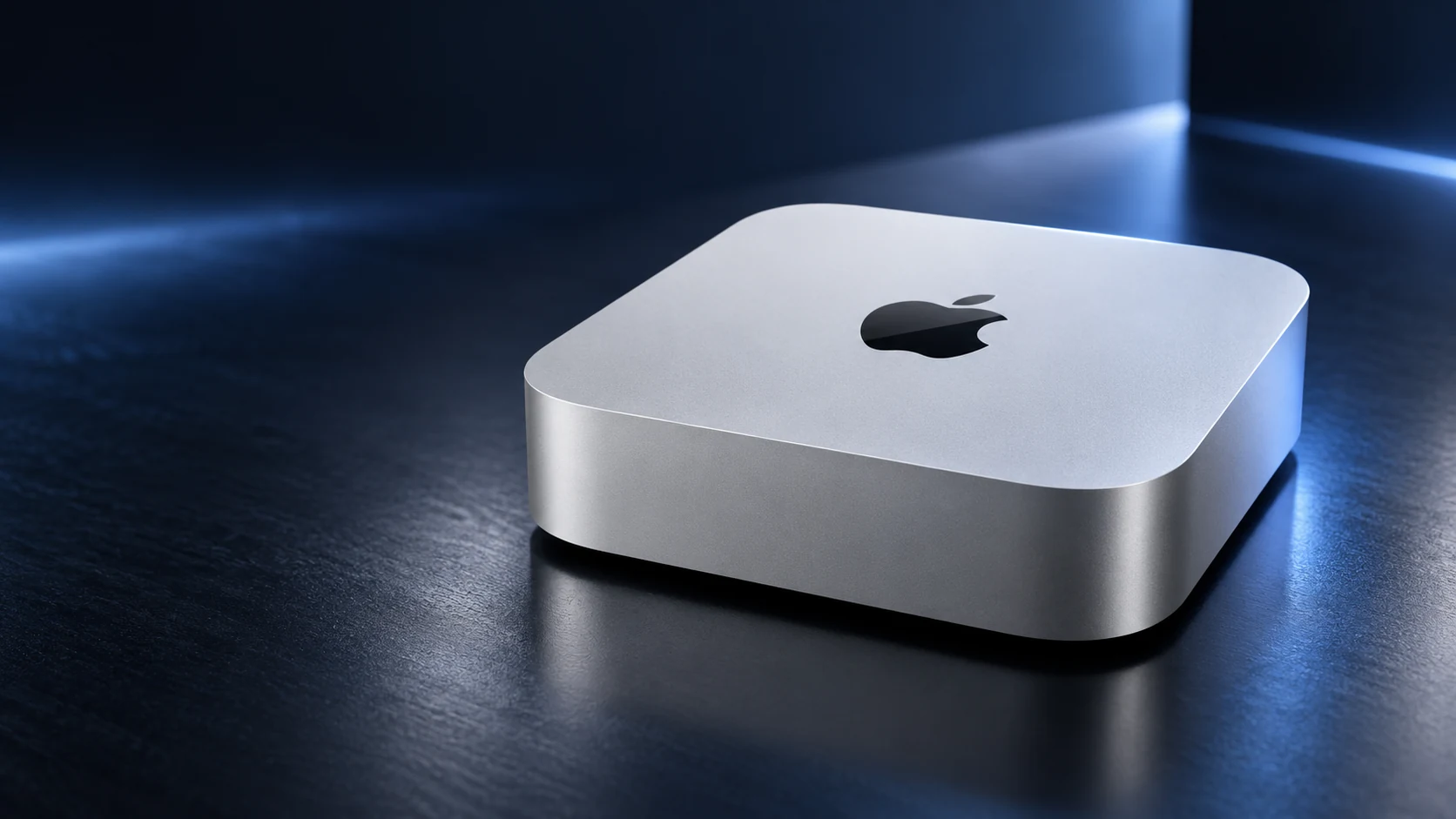
Plan a Mac mini M6 display setup from the exact chip, the number of screens and the resolution and refresh rate wanted on each screen. A monitor’s maximum specification and the Mac’s maximum specification do not prove that every combination is supported.
Apple’s documentation says the M6 Mac mini supports up to three external displays under specified combinations. Use the M6 section, since the same product family also includes configurations with a different chip and different port capabilities.
Identify the display-capable ports
The M6 specification lists HDMI and three rear Thunderbolt 4 ports with DisplayPort support. It describes the two front USB-C ports as USB 3 data ports. Do not choose a display connection merely because a socket has the USB-C shape.
| Planned setup | What to check in Apple’s M6 display table | Accessory check |
|---|---|---|
| One monitor | Supported resolution and refresh rate on the intended connection | Matching monitor input and cable |
| Two monitors | A supported pair of simultaneous modes | Both paths, including any hub |
| Three monitors | The permitted modes for the first two and the third | Correct port allocation for each screen |
| Hub or daisy chain | Supported multiple-display arrangement on that port | Exact hub/display capabilities |
Use a complete supported combination
One documented three-screen arrangement allows two displays up to 6K at 60Hz over Thunderbolt and a third up to 4K at 60Hz over HDMI. That is a combination to verify against the actual monitor inputs and cables, not a promise that three arbitrary high-refresh screens will all run at their individual maximums.
Apple also documents supported hub or daisy-chain arrangements for up to two displays on a single Thunderbolt port. It states that this does not increase the Mac’s overall display-count limit. A dock with many video sockets is therefore not evidence of more native simultaneous displays.
Write down resolution and refresh rate separately
For each monitor, list the desired resolution, refresh rate and input. A screen can offer different maximum modes through different connections. Check the monitor’s own manual and the cable or adapter’s exact supported mode, including any requirements for HDR or other features you intend to use.
When comparing high-refresh options, use Apple’s live model-specific table and the monitor’s documentation together. Do not select the highest resolution from one row and the highest refresh rate from another and combine them into an unsupported expectation.
Plan the rest of the desk
Record which ports are needed for an external SSD, audio equipment and other peripherals. A display plan that consumes every convenient connection may require a different cable arrangement or an appropriate hub for the remaining devices.
Also decide whether you want monitor USB ports, speakers or charging features to work. Video displaying successfully does not demonstrate that every secondary function of a monitor or dock is connected. Evaluate those functions separately using the relevant accessory instructions.
Validate before the return period ends
- Confirm the Mac’s exact chip and the selected display combination.
- Match each screen to a documented input and cable path.
- Check resolution and refresh rate in macOS Displays settings.
- Test the applications and desk peripherals you normally use.
- Keep the product references if you need manufacturer support.
If a screen is dark or offers only a lower mode, follow Apple’s display troubleshooting route and inspect the connection path. Start with the documented combination before replacing an expensive monitor. A complete plan makes the purchase easier to assess than a collection of isolated maximum specifications.
Related QGH guides
- Apple Mac mini M6 Review: Is Apple’s $899 Desktop Worth It?
- Gaming Setup Guide 2026: Essential Accessories for PC and Console
Sources and methodology
This guide combines manufacturer documentation with QGH buying and setup analysis. Sources were checked on October 6, 2026. Model, software, regional and carrier conditions can change; follow the current linked instructions for your device.