


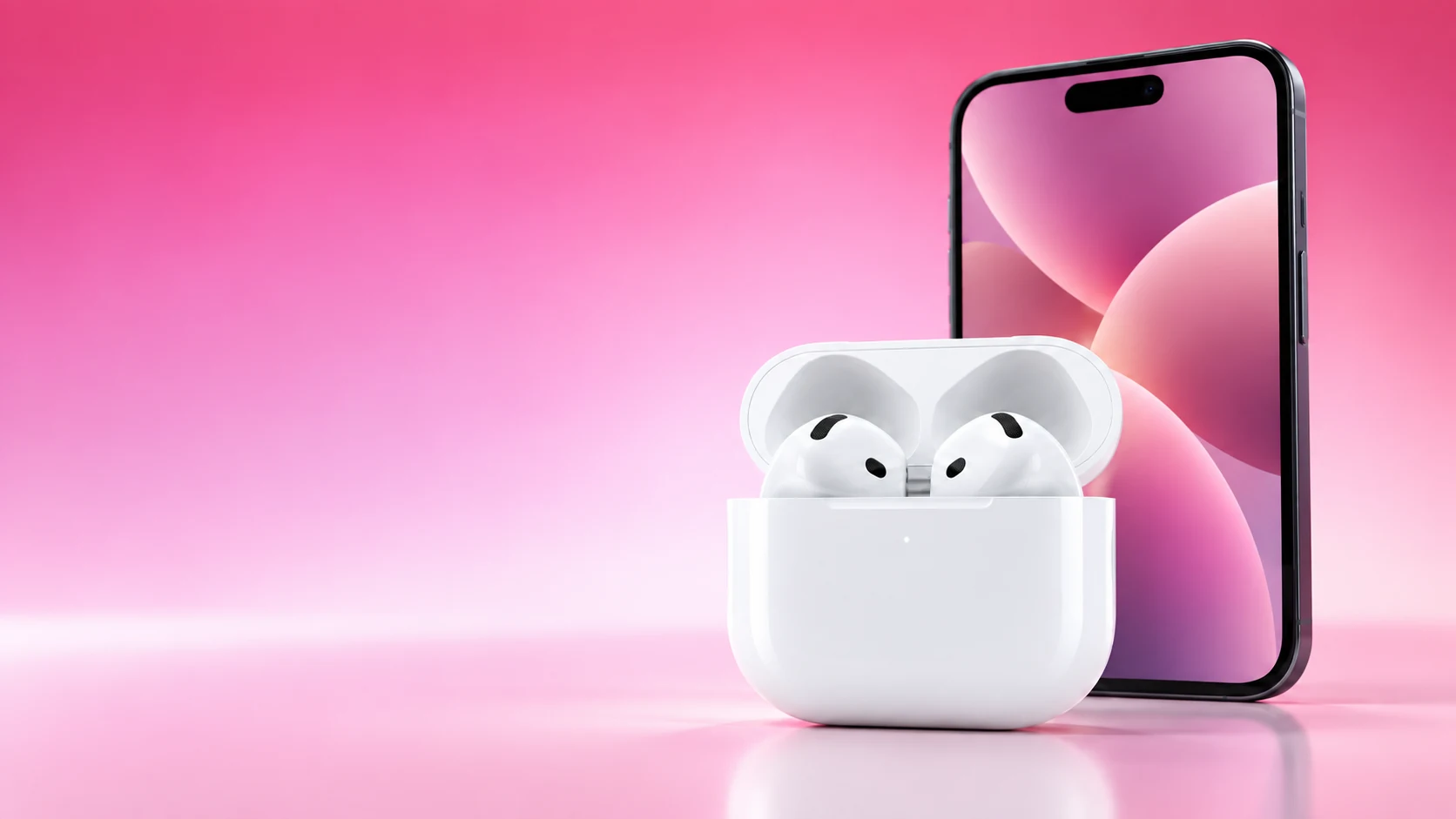
AirPods firmware updates are delivered automatically under Apple’s specified conditions. Check the exact model and installed version, then prepare the compatible Apple device, connection and charging arrangement before deciding an update has failed.
Use Apple’s live firmware page for the current target version. A version number copied into an old article can quickly become outdated and can differ between AirPods models.
Identify and record the version
On a compatible, updated iPhone or iPad, open Bluetooth settings and the information screen for the connected AirPods. The About section shows firmware information. A supported Mac also exposes the information through Bluetooth settings.
Record the model and version together. Comparing a pair of AirPods Pro with the latest version listed for another generation is not a useful update check. If the model is unclear, use Apple’s identification link from the firmware page first.
| Check | Ready condition | If it is missing |
|---|---|---|
| Host device | Compatible iPhone, iPad or Mac with current software | Update or use a supported device |
| Connection | AirPods connected by Bluetooth | Reconnect before preparing the update |
| Internet | Host device connected to Wi-Fi | Establish the required connection |
| Charging | Earbuds in their powered charging case | Connect power and check charging |
| Placement | Closed case in Bluetooth range of the host | Keep the devices together and leave the lid closed |
Create the documented update opportunity
Apple’s current procedure for AirPods and AirPods Pro has you connect the case to power, place the earbuds inside, close the lid and keep the case near the Wi-Fi-connected Apple device. It specifies waiting at least 30 minutes before reconnecting and checking again.
That is a preparation process, not an install-progress screen. Opening the case every minute to look for movement interrupts the quiet period you are trying to provide. AirPods Max have their own charging procedure; use the section for your product rather than adapting the earbud-case instructions.
Verify what actually changed
After the waiting period, reconnect and compare the installed version with Apple’s entry for your exact model. If it matches, the update check is complete. A new feature may still have separate host-software, regional or model requirements.
If it does not match, review the preparation table before starting again. A powered case, charged earbuds, active Bluetooth connection and suitable host are independent conditions. Fixing one does not establish that the others are satisfied.
Avoid treating every audio problem as firmware
A quiet earbud, debris, an audio-output setting or a charging fault can persist on current firmware. Record the original symptom separately from the update status so that troubleshooting remains focused.
Apple’s firmware guide points to the model’s reset process when the documented update attempt still fails. Read that process before using it, and note that reconnection or setup may be necessary afterwards. Do not repeatedly reset the pair instead of checking the basic conditions.
Without a compatible Apple device
Apple offers appointments at an Apple Store or Apple Authorized Service Provider for firmware updates when an Apple device is unavailable. Check that route in your region if you normally use the earbuds with Android.
- Save the model and initial firmware version.
- Compare against Apple’s current model-specific entry.
- Prepare the supported host and charging conditions.
- Leave the documented waiting period uninterrupted.
- Recheck the version and use support if the update remains unresolved.
Keeping these notes makes a support request concrete and prevents an unrelated listening problem from being mistaken for an unsuccessful firmware installation.
Related QGH guides
- Apple AirPods 5 Review: Are Apple’s $129 Earbuds Worth It?
- AirPods 5: 7 Things to Know Before You Buy in 2026
Sources and methodology
This guide combines manufacturer documentation with QGH buying and setup analysis. Sources were checked on October 6, 2026. Model, software, regional and carrier conditions can change; follow the current linked instructions for your device.