


Identify your pair
Check the generation, app version and region before following a settings guide.
Separate the controls
Review light indications, voice choices and media handling individually.
Check before sharing
Look at the selected file, destination and account before confirming a share.
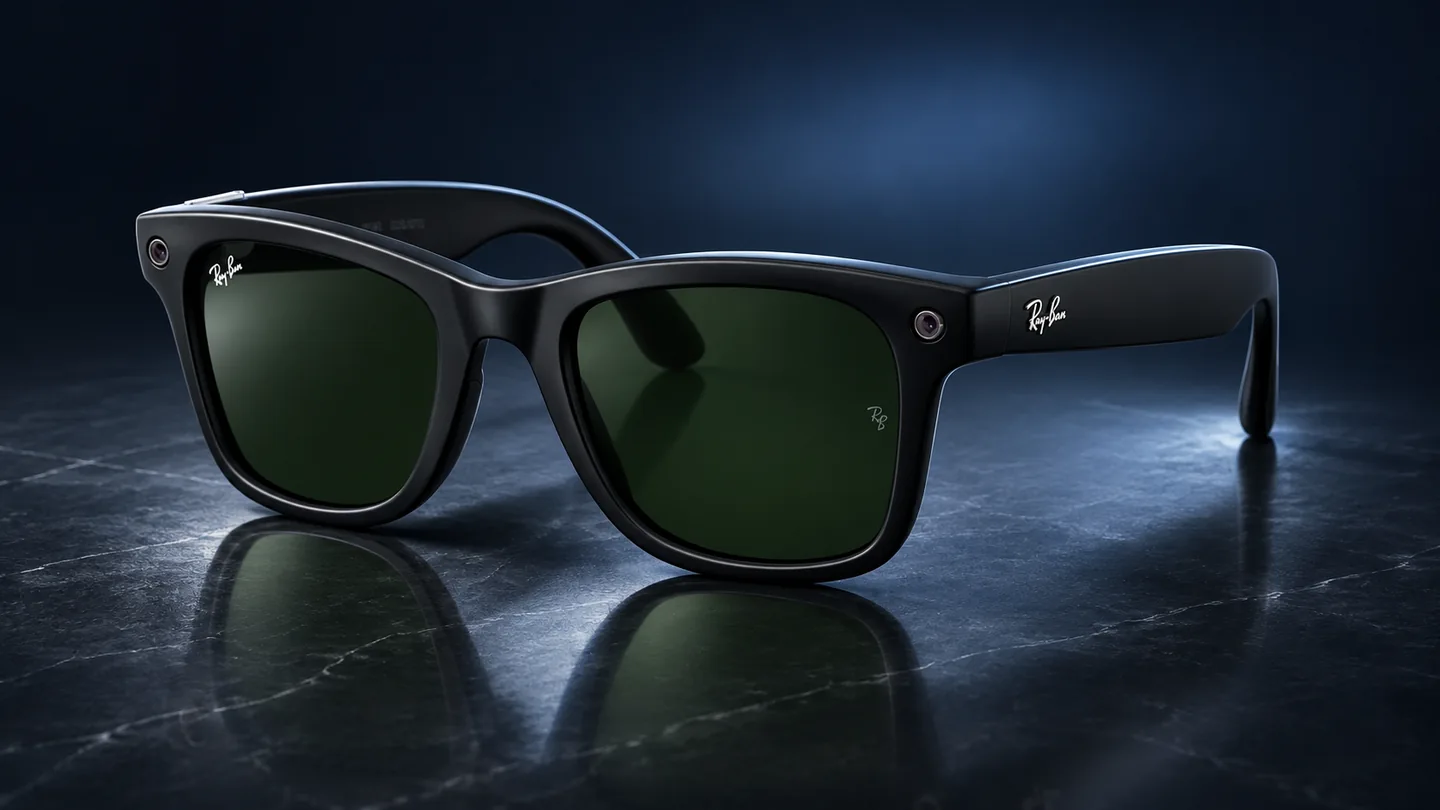
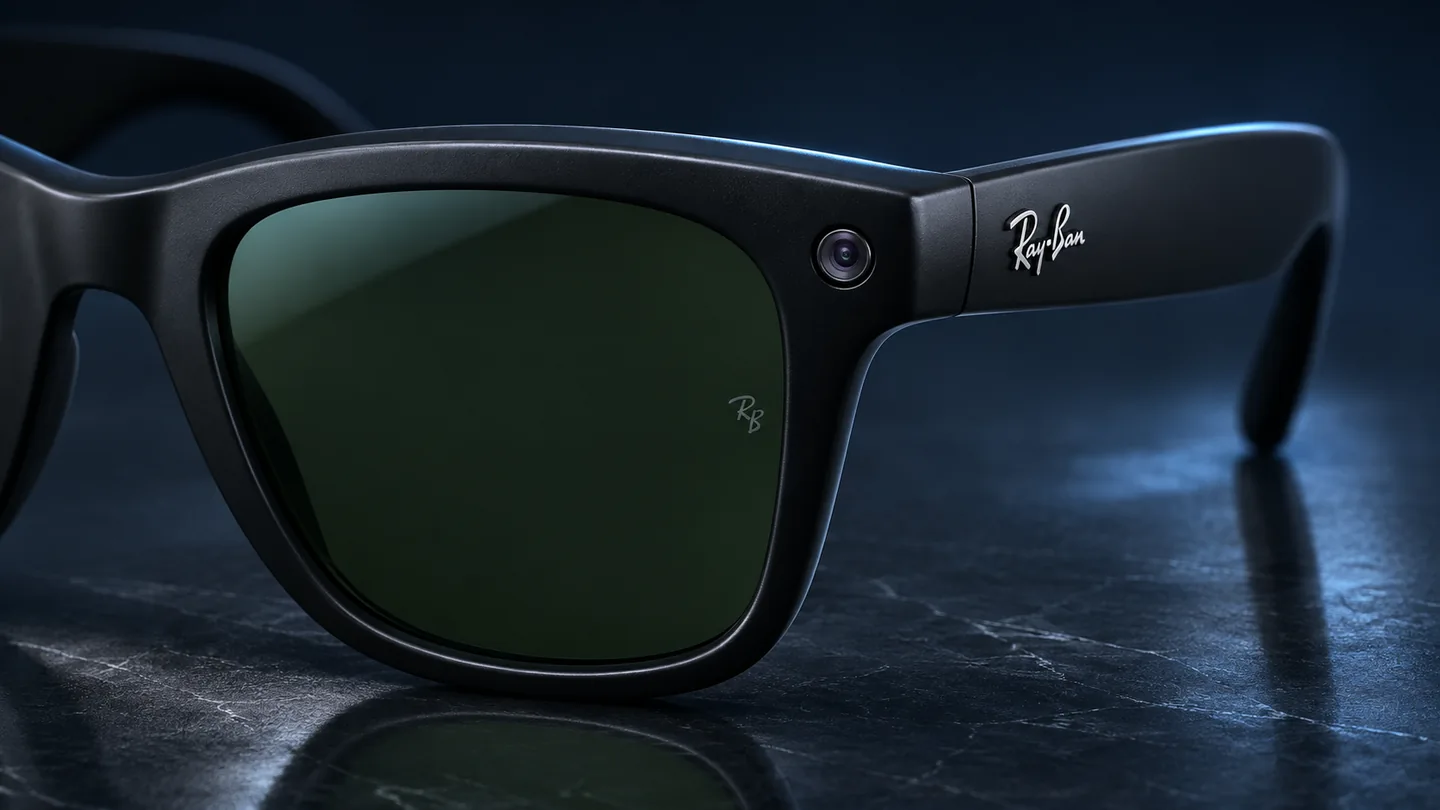
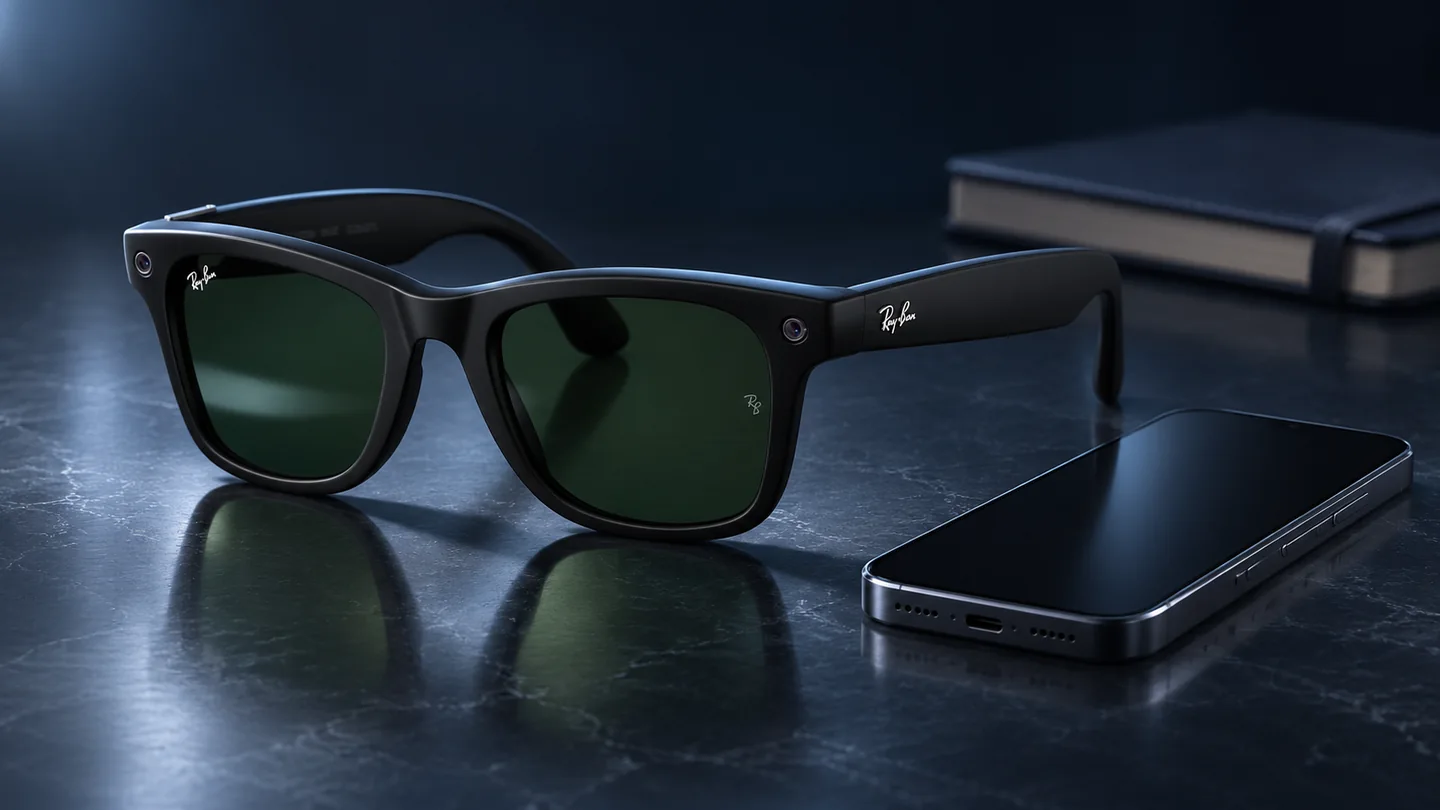
Documentation and layout checked November 2, 2026. The three images are AI-generated QGH editorial illustrations based on an official Ray-Ban reference. They are not product-test photos or evidence of a camera or LED operating state.
Use the current app and documentation for your exact generation and region. The collection includes different hardware and software arrangements, so an old screenshot can show a control or behavior that differs from your pair.
Know what the lights indicate
| Control or indication | What to review | What to avoid assuming |
|---|---|---|
| Capture LED | Documented capture and AI behavior for the generation | That every camera-based operation has the same indication |
| Notification LED | Wearer-facing alerts and brightness setting | That dimming this adjusts the external capture light |
| Voice setting | Voice control and wake-word choices in the current app | That changing voice settings turns off all smart features |
| Media setting | Cloud-processing option and current data explanation | That imported files never have any cloud handling |
| Share or export action | Destination app and selected content | That importing a capture means it has been posted publicly |
Review settings before using the glasses
Open the device’s privacy and voice sections in the companion app and read the choices actually presented. Ray-Ban documents a voice-control toggle and an optional cloud-media-processing setting. Check their current descriptions before selecting your preference.
Keep a short note of the settings you chose and why. If the app changes after an update, revisit those descriptions rather than relying on a remembered menu path. A change in terminology can otherwise make an old checklist misleading.
Treat the environment as part of the decision
Before making a capture, consider who and what will be included and explain your intention where appropriate. A useful habit is to pause and decide whether recording serves the task, especially in a shared or private space.
Do not interpret an LED as a substitute for that conversation. The device indication, another person’s understanding and the decision to share a file are different matters. Make each decision deliberately rather than assuming the hardware communicates everything by itself.
Follow a capture through the workflow
- CaptureDecide what should be included.
- ImportSee where the file appears.
- ReviewCheck the file and account.
- ShareChoose a destination deliberately.
Use a harmless test image to inspect where an import appears, which account or app is involved and what a share action asks you to choose. Avoid using someone else’s sensitive information for this check.
Review the destination before confirming any share or export. If you maintain copies in several places, inspect each relevant location when cleaning up. Do not assume deleting one local file necessarily identifies every copy you previously created elsewhere.
Prepare before lending or selling
Ray-Ban’s handover guidance calls for importing wanted captures before a factory reset, which erases captures on the glasses and their account association. Verify your usable copy first and use the current reset instructions for the pair.
- Identify the exact generation and app version.
- Review capture behavior and voice and media choices separately.
- Inspect imports and sharing destinations with a harmless test.
- Preserve wanted captures before any reset.
- Recheck the setup before another person uses the device.
Privacy review is a repeatable routine rather than a single switch. Knowing the current controls and following the actual media workflow gives you a more useful basis for decisions than assuming a particular light or disabled voice feature explains everything the glasses can do.
Quick privacy questions
Does dimming the notification LED change the capture light?
They are different indicators. Check the brightness and capture descriptions separately for your generation.
Does importing a capture publish it?
Importing, saving and sharing are different steps. Review the destination and the action you confirm in the app.
What should I check before a factory reset?
Confirm that the captures you want to keep have been imported and that you can open the copy. Then follow the current reset guide for the exact model.
Related QGH guides
- Ray-Ban Meta Gen 3 Review: Is the $449 Upgrade Worth It?
- Meta Connect 2026: New AI Glasses, Muse and Everything You Need to Know
Sources and methodology
This guide combines manufacturer documentation with QGH buying and setup analysis. Manufacturer documentation was rechecked on November 2, 2026. Model, software, regional and carrier conditions can change; follow the current linked instructions for your device.