


QGH EXPLAINER · BUILD YOUR DESK CORRECTLY
MacBook Neo has two USB-C ports. Use the right one.
Use the USB 3 port for a display or faster storage, and keep the USB 2 port available for charging. Neo supports one native external display, up to 4K at 60Hz, alongside its built-in screen.
The MacBook Neo ports look similar, but their functions differ. This guide maps the connections, explains the native external monitor limit and gives you a practical checklist for cables and hubs. It is based on Apple documentation; QGH has not tested a dock or display with Neo. For the broader buying decision, read our MacBook Neo review.
Which MacBook Neo USB-C port should you use?
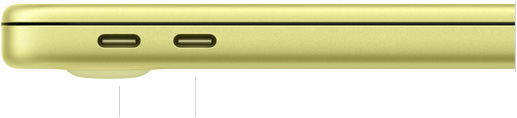
When facing the left side of the laptop, Apple identifies the leftmost USB-C connection as USB 3 and the rightmost as USB 2. Its Neo tour recommends charging through USB 2 to leave USB 3 free for a display or faster accessory.
| Connection | Best starting use |
|---|---|
| USB 3: leftmost when facing the laptop’s left side | Display, or a compatible faster data accessory; also charging |
| USB 2: rightmost from that same viewpoint | Charging or a compatible lower-bandwidth accessory |
Apple’s accessory guide lists maximum interface rates of 10 Gbit/s for USB 3 and 480 Mbit/s for USB 2. These figures are connection limits, not QGH transfer measurements. Your storage device, cable and other equipment also affect the actual result.
Use the viewpoint above when identifying the ports. A photograph’s left and right can become confusing when the laptop is turned around. Once you have identified the display-capable connection on your own machine, keep that mapping in mind when moving between charging, a monitor and storage.
Can MacBook Neo use an external monitor?
Yes. Apple’s display support document specifies one external screen up to 4K at 60Hz in addition to the built-in display. Connect it through the USB 3 port. Closing the lid does not increase the number of supported external screens.
Treat that as the native supported limit. A hub does not automatically change it. If your planned desk requires two external monitors, reconsider the computer or investigate the exact alternative setup independently before buying hardware. This guide does not promise a software-based multi-monitor workaround.
A straightforward desk layout
USB 2 → compatible charger. USB 3 → compatible display cable or display-capable hub. Choose the hub only after checking the screen, data accessories and power arrangement you intend to connect.
Choose a cable by its functions, not its connector
First read the monitor’s documentation. Identify which input carries video and what the intended resolution and refresh rate require. Then choose a cable or adapter explicitly supporting that connection and mode. A USB-C shape by itself does not establish video, data bandwidth or charging capability.
For a USB-C monitor, check that its specified USB-C input accepts video and whether it supplies power. For an HDMI or DisplayPort input, verify the adapter’s stated output capability and Mac compatibility. A product advertised as a charging cable is not automatically a display cable.
| Your task | Check before ordering |
|---|---|
| One external display | Video-capable cable or adapter; the monitor’s input and target mode |
| An external SSD | USB data compatibility, cable capability and suitable port |
| A hub with display and charging | Mac support, video mode, power pass-through and accessory limits |
| An existing Thunderbolt accessory | Whether it also supports a compatible USB mode |
Does MacBook Neo support Thunderbolt accessories?
Apple’s accessory documentation says Thunderbolt-only devices are incompatible with Neo. A device that also supports an appropriate USB standard can be compatible through that mode. Read the specific accessory’s documentation before assuming that a USB-C connector is enough.
Check the exact model, not just the brand or a dock family name. Product listings may combine several versions. If the manufacturer’s documentation does not clearly state a supported mode for your laptop, obtain clarification before ordering. We have not verified individual accessory models.
What should you check in a USB-C hub?
Display support: Find the documented resolution and refresh rate for the output you will use. Check Mac compatibility and whether the claimed screen count applies to your computer.
Power arrangement: If you want charging through the hub, check its power pass-through requirements and what it can deliver to the laptop. Confirm whether the charger is included or needs to be supplied separately.
Data use: List the peripherals that will share the connection. A hub cannot turn a laptop port into a higher-speed interface. Avoid buying against a headline port count without checking the individual functions.
Practical fit: Consider cable reach, desk placement, the ports you actually need and a suitable return policy. Do not pay for connection types your setup cannot use.
If the external display stays dark
1. Confirm the laptop port. Connect through USB 3 using the viewpoint explained above. Keep the intended display path separate from a charging-only connection.
2. Check the screen input and cable. Select the correct input on the monitor and verify that the cable or adapter supports video. Inspect the exact device documentation.
3. Simplify the connection. If your equipment permits, try the display without the hub. This can help identify which part of the connection needs attention; it is a troubleshooting suggestion, not a compatibility guarantee.
4. Follow Apple’s display instructions. Its Neo display support page links to guidance for connecting a screen and resolving a dark or low-resolution image. Follow those steps for your situation rather than buying another adapter immediately.
MacBook Neo ports FAQ
Can both USB-C ports charge MacBook Neo?
Yes, according to Apple’s tour. Using USB 2 for charging leaves the display-capable USB 3 connection available.
Can an ordinary hub add a second native external monitor?
Do not assume so. Apple’s supported native limit is one external display. A larger number of sockets does not change that documented computer limit.
Will I get 10 Gbit/s from an external SSD?
Not as a guaranteed file-transfer result. That is the maximum interface rate Apple lists for USB 3; the device, cable and workload also matter. QGH has not measured transfer speeds.
Sources and editorial method
Apple Neo port tour · Apple accessory compatibility · Apple external display support · Neo technical specifications
Official sources checked October 11, 2026. QGH has not tested these laptops or measured performance, battery life or accessory compatibility. Buying recommendations are editorial interpretations of the published specifications. Prices can change; confirm the selected configuration and checkout total.
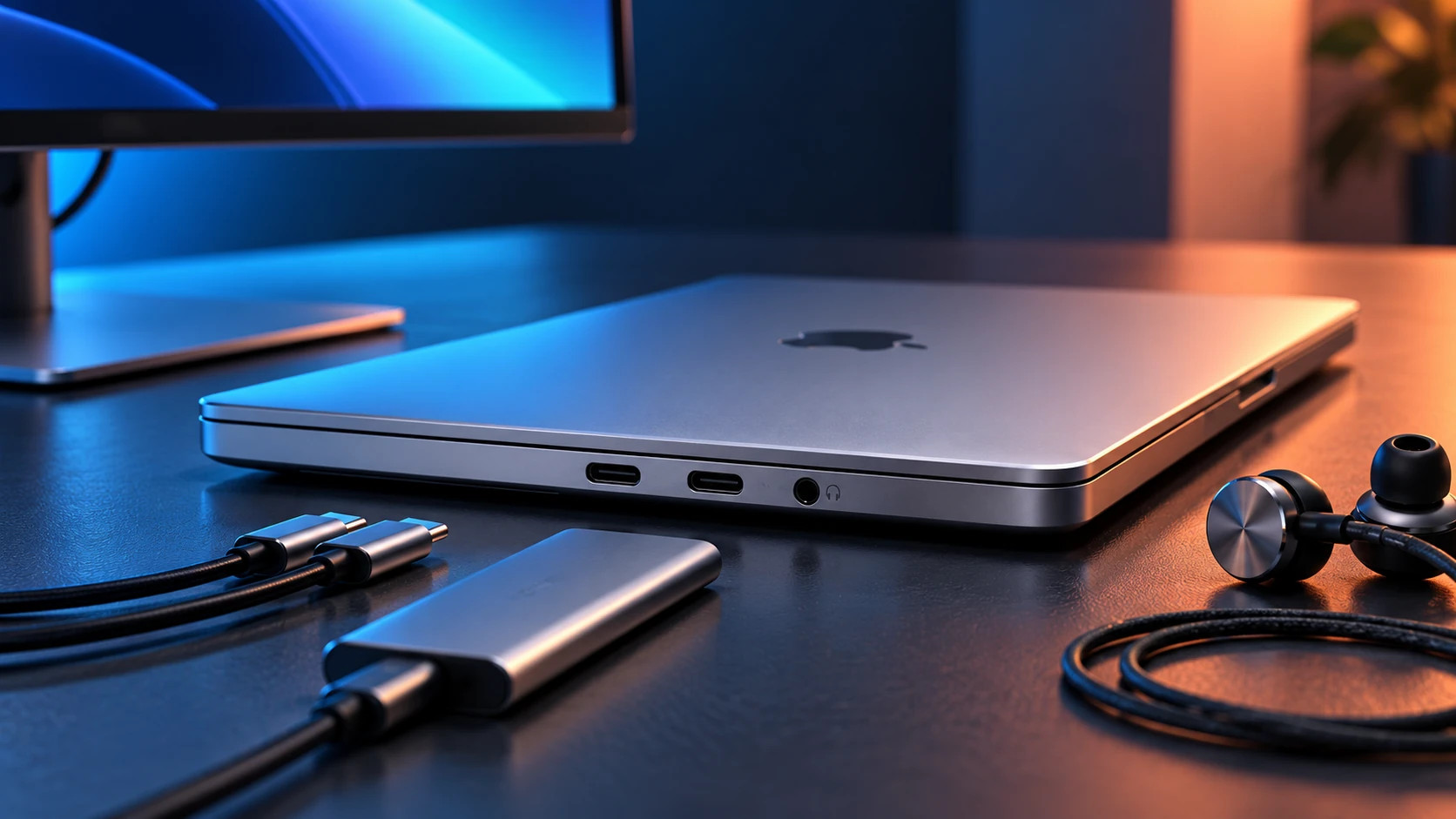
Visuals: the QGH featured image is an AI-generated editorial illustration. Product photographs in this guide are credited to Apple; they are not photographs of a QGH test unit.