


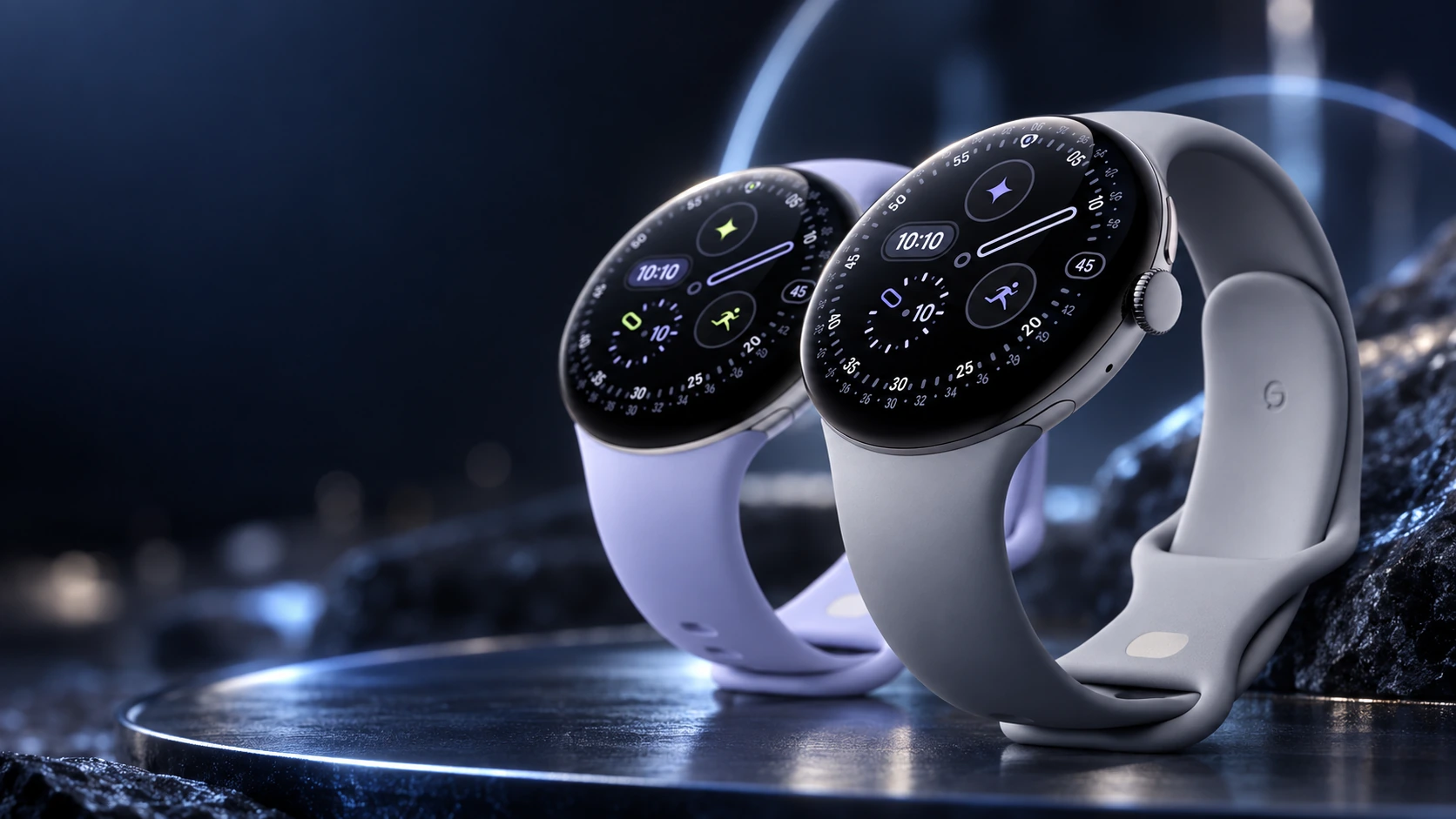
To improve Pixel Watch 4 battery life, start with Battery Saver and the display settings, then look at the connected activities you use most often. Change one setting at a time so that you can see the cost in convenience as well as the benefit in your own routine.
Establish a useful baseline
Record the battery level when you put the watch on, the level before bed and the major activities in between. Include GPS workouts, cellular use and streamed audio. A quiet office day and a long workout are different workloads, so comparing them without context can make a setting look more effective than it is.
Use roughly comparable days for your checks. The goal is enough power for the tasks you value, not the highest remaining percentage at the expense of the reason you bought the watch.
Try these changes in order
| Change | Why try it | Main compromise |
|---|---|---|
| Enable Battery Saver | Google’s documented battery-saving mode | Background activity is limited and notifications may be delayed |
| Review Always-on Display | Keeps the screen visible between interactions | Turning it off changes how quickly you can glance at the time |
| Review Tilt-to-wake | Avoid unnecessary screen wakes | You may prefer to wake the screen deliberately |
| Shorten unnecessary connected sessions | Focus on the apps and activities you actually use | Less continuous streaming or phone-free connectivity |
| Plan a short charging window | Protect your evening or overnight routine | Requires access to the correct dock |
Google’s current instructions put Battery Saver under Settings, then Battery. Its documentation says the mode turns off Always-on Display while keeping Tilt-to-wake available. Read the confirmation on your watch because software updates can change the presentation of these controls.
Match the settings to the day
For a desk day, preserve the notification behavior you rely on and start with the screen. For a phone-free outing, decide beforehand whether streaming audio is essential or whether your app offers an offline option. For an overnight tracking routine, check the charge before bed rather than assuming yesterday’s remaining power will be enough tonight.
If a setting makes you miss something important, reverse it and try a different adjustment. Saving battery is only useful when the watch continues to fit your life. Turning off several features together also makes it harder to identify which one helped.
Use the right charger and expectations
The Pixel Watch 4 uses its Quick Charge Dock. Confirm the dock’s compatibility rather than assuming a charger from another generation will work. A USB-C connector on the power side does not establish compatibility with the watch itself.
Google publishes different battery estimates for the 41mm and 45mm models. Those are manufacturer estimates under stated conditions. They should help compare versions, rather than act as a guarantee for your particular combination of apps, signal strength and workouts.
When settings are not the answer
A watch that does not charge reliably needs a charging check, not increasingly aggressive battery restrictions. Inspect the dock connection, follow Google’s cleaning and charging instructions, and seek support if the problem persists. Do not disassemble the watch or use improvised charging methods.
After making a change, keep a simple record of battery level and convenience for a few comparable days. Retain the smallest set of adjustments that gets you through your routine. That gives you a repeatable configuration instead of a list of features permanently disabled without a clear benefit.
Related QGH guides
- Google Pixel Watch 4 Review: Is Google’s $349 Smartwatch Worth It?
- Google Pixel Watch 4 in 2026: 7 Things to Know Before You Buy
Sources and methodology
This guide combines manufacturer documentation with QGH buying and setup analysis. Sources were checked on October 6, 2026. Model, software, regional and carrier conditions can change; follow the current linked instructions for your device.